Using MDE API GUI to bulk isolate devices
Learn how to use the MDE API GUI tool to bulk isolate devices in Microsoft Defender for Endpoint, enhancing your incident response capabilities.
It is really important to be efficient during incident response.
I use a lot of automation to speed up my investigations and remediation tasks.
One of the tools commonly used in the industry is Microsoft Defender for Endpoint (MDE).
MDE provides an API that allows security professionals to automate various tasks, including isolating devices.
In an incident, you want to be able to:
- Quickly isolate compromised devices to prevent lateral movement.
- Add or remove a tag on devices for tracking and reporting purposes.
- Export log of actions taken for compliance and auditing.
Microsoft developed (3 years ago) a GUI tool to interact with the MDE API, making it easier for security teams to perform bulk actions without writing code.
You can find the tool on GitHub: MDE API GUI.
This tool was great but it was not maintained for a while, and was missing some features.
I decided to fork the project and add some functionalities that I found useful during my investigations.
You can find my fork here: stanfrbd/mde-api-gui.
New Features Added
- Add the ability to remove tags from devices.
- Add support for UnManagedDevices (specific case when you need to network contain a device that is not managed by MDE).
- Changed the sleep time from 1 second to 0.5 second to speed up the process without breaking API rate.
- File picker for the CSV import to make it easier to select files.
Requirements
- Create Azure AD application as described here.
- Grant the following API permissions to the application:
| Permission | Description |
|---|---|
AdvancedQuery.Read.All | Run advanced queries |
Machine.Isolate | Isolate machine |
Machine.ReadWrite.All | Read and write all machine information (used for tagging) |
Machine.Scan | Scan machine |
- Create application secret.
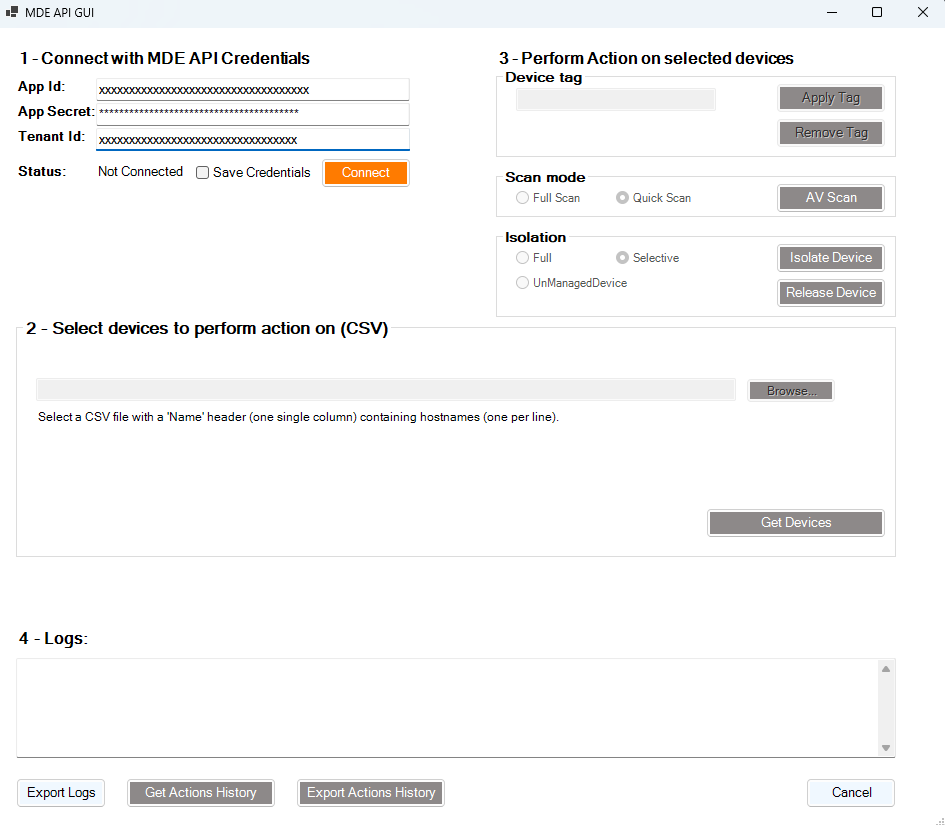 Screenshot of the app
Usage
- Connect with AAD Tenant ID, Application Id (Client ID) and Application Secret (Client Secret) of the application created earlier.
- Get Devices that you want to perform actions on, using one of the following methods:
- CSV file (single Name column with machine FQDNs)
The CSV file shoud look like this (with hosts FQDNs):
1
2
3
4
5
Name
machine1.domain.local
machine2.domain.local
machine-without-domain
machine.another.domain
- Confirm selection in PowerShell forms pop-up.
- Choose action that you want to perform on Selected Devices, the following actions are currently available:
- Specify device tag in text box and Apply tag.
- Run AV Scan.
- Isolate/Release device.
- Verify actions result with Logs text box.
If you use this script with more than 100 devices, it will take a lot of time: ~1min30s for 100 devices because of API rates limits (100 calls per minute).
So if you have more than 100 devices, use multiple CSV and re-do the operation.